 COME
COMECOME Installed but Shows a Network Message
If COME installs and opens but shows a network message, check connectivity at the app stage. The installation has already reached a different point from a file that failed to download.
Compare a simple connection test
Try loading an ordinary webpage on the same connection. If that also fails, review the device connection first. If only COME fails, record the app message and time; a successful browser request narrows the problem but does not prove the app service is available.
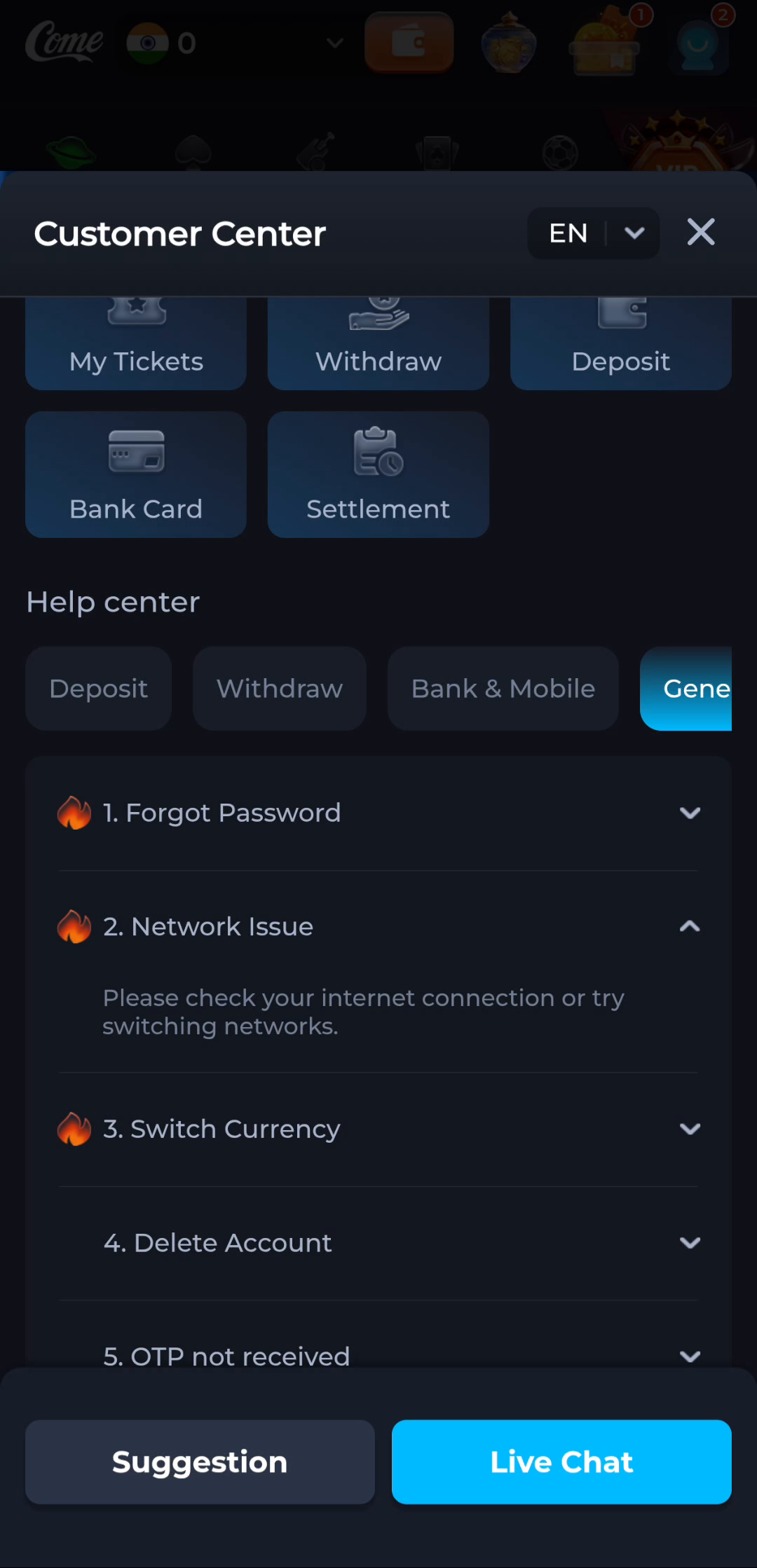
Use the matching help topic
The Network Issue help shown here suggests checking the connection or switching networks. A controlled change between your normal available networks can help identify whether the behaviour changes. Keep the original message so you can compare results.
Avoid resetting the account as a test
Do not clear app data or remove a working installation just because content fails to load. Those actions can affect account access without identifying a network problem. If the issue persists, describe the device, stage, message and connection comparison through the current service’s help route.
A useful next step
Return to Download only if you still need installation guidance or a current package. Use connection help when the installed app is the part that cannot load.